Showing posts with label Windows. Show all posts

20181208

Create a Shortcut to shutdown your Desktop Windows 10

Right click on your desktop and create a new shortcut paste Shutdown -s -t 00 in location of the drive field.
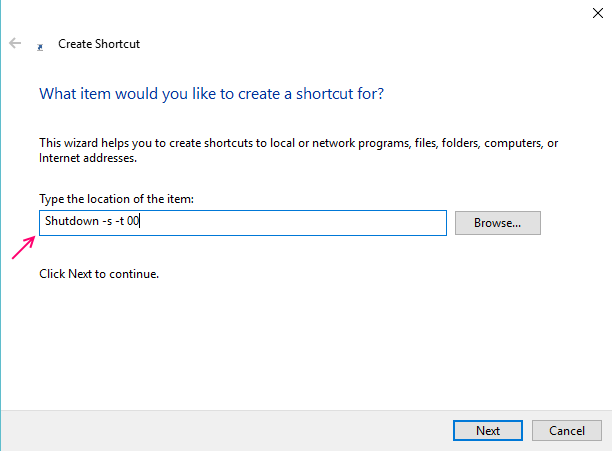
shortcut

20181207

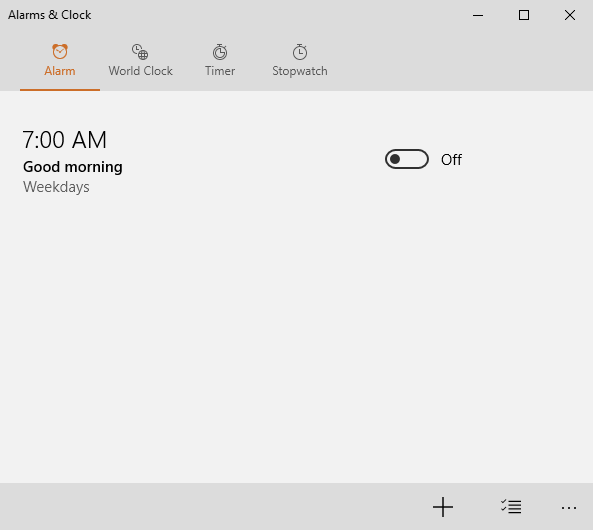
You can create an alarm or use stop watch. Just search alarm in windows 10 task bar search

alarm

Disable access to USB ports, so that no one can steal data through USB from your PC

Do You want to protect your data so that no one can take it  out from your PC via a pen drive, Then here are steps to block usb ports. You can reenable whenever you want.

1. In search box search RUN. You can also press windows key + r.
2. Now, type regedit in it to open registry editor.
3. Once it browse to the follwoing location given in next step
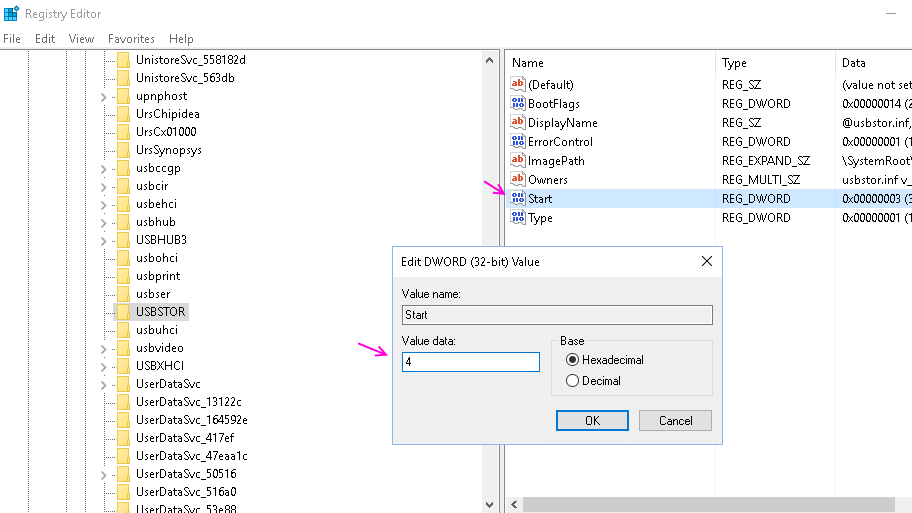
4. HKEY_LOCAL_MACHINE\SYSTEM\CurrentControlSet\Services\usbstor
5. In the right area, double click on Start.
6. In the Value Data box, change the value to 4.
7. Finally Click on OK.
8. Close Registry Editor and restart your PC.
9. To re-enable access to your USB ports, enter 3 in the Value Data box in Step 6.
disable-usb

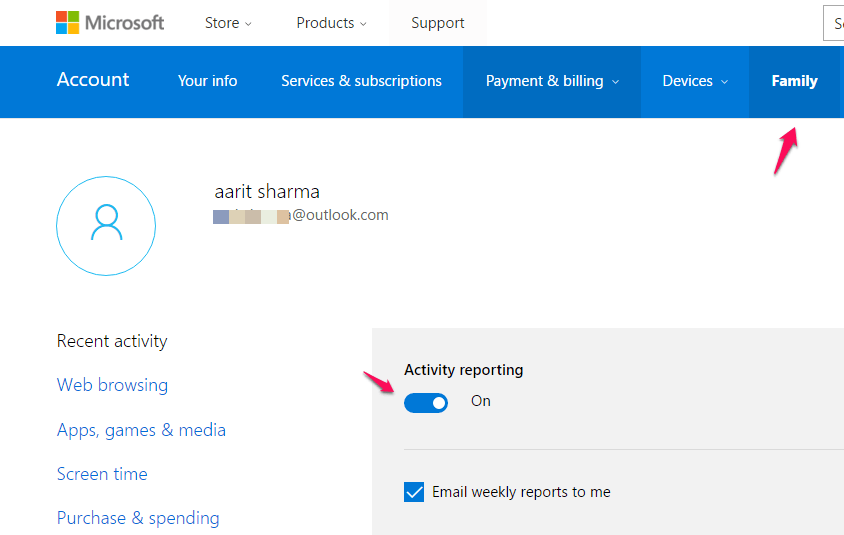
Spy on your Child’s Online activity. Get detailed email report every week of his visited websites

For this create a child account on your windows PC. Go to your Microsoft account and make sure its turned on.
child-account

20120717

Normalize Windows Volume With These Simple Tricks


Sometimes while playing a video or a movie, you may notice a sudden increase in volume. Now if you’ve have remote control for speakers like mine to control the volume then, its fine. But for those who controls the volume from mixer situated in the system tray, then this problem can be quite frustrating. Though Windows Loudness Equalization
volume control panel
You can easily correct this problem from your sound card properties (if your sound card supports it). Almost all the sound cards in the market support the functionality of Loudness Equalization. In order to turn this feature on you have to go to Control Panel and click on Sound. Now a window named as Speaker Properties will pop-up in front of you. Go to Enhancements tab, if you go through the options, you’ll see the option Loudness Equalization. Check this option and click Apply. Now you’re done and you’ll notice that the sounds through your speakers are in the same frequency.
sound card volume properties
Through VLC Volume Normalization
vlc volume settings
If for some reason your sound card doesn’t support Loudness Equalization, then you don’t have to worry about it. All you need is VLC media player. Now open VLC media player and click on Toolsand then choose Preferences. Now in the Preferences Windows switch to full preferences view by clicking on All. Now go to Audio->Filter->Volume normalization. Now tweak the options according to your need and you’re good to go.
vlc volume


vlc volume normalization
The above mentioned tips are all you need to fix the uneven levels in volume while playing audio or video through your players. If for some reason you don’t like to use VLC as a media player, then you can go for players which have the support for Replay Gain for music. One of the players which have replay gain support is foobar music player. You can even tweak K-lite Codec Pack Audio Configuration for normalizing volume.via[techyfuzz]

20120612

Windows 8: How the child safety


I myself have still not young, but I have sometimes parental controls for Windows 8 looked at, the name is therefore as Family Safety. A few words for those who are interested in it. In the settings of an account can be set to Windows 8, if this account is to be monitored by the Family Safety. Is that, then you can make the rules explicit account.
In case you have not initialized, no problem in setting up an account this step, the user accounts can be processed so as yet. From now on, you can impose restrictions on this account that are actually relatively easy to understand.Although there is information on the part of Microsoft, which provide virtually specifications that fit websites for kiddies, but one can work with blacklists.


Whether you own whitelists and blacklists are good? Certainly, for completely restricted surfing, otherwise you should probably opt for Microsoft's list - or you know the 100,000 porn sites for a blacklist? So - I yes, you certainly do not ;) , therefore, from a given list is already useful.

Here once more the overview page on "safe surfing for children" under Windows 8

Furthermore, there are the old things, such as the restriction on the time. This can be based on the time, or you have a budget to use.

Continue to see Windows 8: the good old blocking applications that does indeed work very well. Besurft be blocked sites or launch applications blocked, then an information message is displayed for the youngest. Applications can then unlock from parents, alternatively, the user can send a "release request". Incidentally, there is the possibility to send to a weekly report on the use of the account by mail. One, I think, a massive invasion of privacy - at least worthy of discussion.

Trust, but control is better - so it is always at least. Microsoft's Family Safety is not the solution to all problems. Violence, pornography and Co can be found everywhere, not only on the PC. In my youth, was still working with the exchanged Videkassetten who then showed Sibylle Rauch, Teresa Orlowski and co. Today it is easier and also another to come to various media. Such software can help with the youngest, the most important but should also be a decent media skills and education of parents and teachers (with whom I could never start anything) in its schools.via[Caschys]

20120611

Windows 8: Enable the hidden Administrator


The password of Windows 8 can be circumvented fairly easily, unless it is a Microsoft account, but a local account. For it there are two types of accounts. Once the purely local, so far as we know it and then once the Microsoft account - closely linked with an account with Microsoft.
Advantage? Direct display of messages & Co and the synchronization of time on different computers. First of all I can tell you that it is well done Microsoft, the Microsoft account to protect, the local fun can be cut short, however slightly - but this should not be in this post, the topic I am going to later times.

Should it ever be the case that you have a Windows data at approaching 8-computer, then you are allowed once fingers crossed, that was the default administrator disabled. I think most people know anyway not that this account exists. But you know it even now. The account exists but is not active.
So how can I activate an account, but if I do not "Windows" come clean because it is provided with a password? Since helps restore the good old ntpasswd . To have a bootable USB flash drive or just as an ISO. Should you need to boot from a CD, then you should burn the ISO logically, the point here I'll be heading.
We therefore ntpasswd boot from CD drive or the small tool and get the good old DOS-style in the looks seen. It looks complicated, but it is not. I'm now just the steps after booting, you should pursue this, to enable the hidden administrator.
First Blank screen, just confirm with Enter

Second It looks complicated, but it is not. This will be elected the board with the Windows installation. In most cases, always the first major ;) case of my sda2 - enter number and then confirm.

Third Path to the registry files indicate. 95% chance that you just need to click the Enter button - the default is predefined.

4th Info fuss - Quit with q as it is only recommend it to where we want. Point 1 Password Reset

5th Info and Query, what we want to do. We choose a point: Edit user data and passwords

6th Users are listed - here we give the user that you want to change. This is logical as the administrator. So we give a name.

7th Once we have entered the administrator, we have another menu. This has set a point 4 to unlock the account as a choice. This is what we choose.

After this last step, we end with an exclamation mark! and have the possibility, the changes after a further (q) uit store. Logically, we must make.

And then? Yes we boot the computer normally high and see what you see on the first screen - a full administrator with full access to the computer. Without the password - without anything. Even if the text is long here - the admin has it with the necessary boot CD or unlock the boot drive in a few minutes.

Now you probably have access to data and achieved what you wanted - in the future I'm going to even have a password and any encryption . via[Caschys]

20120607

Windows 8: This is how the picture-password


You can change when the upcoming Windows 8 not only very secure with a conventional password, you can alternatively, and this is particularly useful in Tablets and Slates, protect with a password screen. It will gestures, such as lines or circles drawn on an image.
Entering a long alpha-numeric password on a virtual keyboard, many find that annoying, so Microsoft has incorporated this feature in his time. First you must choose your own photo, as there is more security than a standard image and promises better memorize better for you. This photo will appear on your locked screen.


What is it and how to set up the fun looks like in practice, as I show Erklärbär in a short video. Anyone who believes that gestures and Co are easy to guess who is the good old password, or using a PIN. And soon I'll explain again why Windows is a local crack 8-account easier than a Microsoft account under Windows 8. via[Caschy]

20120606

How to Skip Metro and go right to the Windows 8 Desktop


If you need to work with the Windows 8 operating system but do not like the new Metro interface at all, you might prefer if your PC would skip right past Metro to display the good old desktop to you. At least for now, that is in the Release Preview, you can still get the start menu back in the interface so that you theoretically do not really need to switch back to Metro at all.
What you basically need to do is create a special shortcut and run it on system start. You can alternatively move desktop applications like Google Chrome into the autostart. In either way, Windows 8 will skip Metro and load the desktop automatically. Please note that you may still see Metro for a moment before you see the desktop. What you save by this is a single-click with the mouse on the Desktop Metro tile.
Robert Boland over at Everything Microsoft describes the process in detail:

Creating the shortcut

Create a blank plain text file in Windows, for instance by right-clicking the desktop and selecting New > Text Document, and fill it with the following lines:
[Shell]

Command=2
IconFile=Explorer.exe,3

[Taskbar]

Command=ToggleDesktop

skip metro windows 8
Now you need to save the file, and rename it to start.scf (you can select a different name, but the extension needs to be .scf).
Robert recommends to load the file using Windows’s Task Scheduler, and here is a quick rundown on how you’d do that:
  • It may be a bit ironic but the fastest way is to hit the windows key, enter schedule, filter by Settings on the right, and hit enter.. This opens the Task Scheduler on the desktop.
  • Click on Task Scheduler Library, then right-click the task list in the upper-middle pane and select Create New Task from the context menu.
  • Enter a descriptive name for the task and click on the Triggers tab afterwards.
  • Click on the New button and select At log on next to Begin the task at the top of the new trigger window. Click OK afterwards.
  • Switch to the Actions tab and select New. Now click on browse and pick the start.scf file that you have just created. Click ok when you have done that.
  • If you are working on a desktop PC click on ok to complete the process. Laptop users may want to click on the Conditions tab before that to uncheck the “Start the task only if the computer is on AC power” box there so that you are taken to the desktop when the laptop runs on battery.
Instead of using the task scheduler, you could also move the file into the system’s autostart folder. You first need to enable the display of hidden folders before you can access the folder in Windows Explorer though:
C:\Users\username\AppData\Roaming\Microsoft\Windows\Start Menu\Programs\Startup
And that’s how you switch right to the desktop. Depending on your system, this may be happening pretty fast after logon, or to slow to really make a difference. via[ghacks]

20120602

Windows 8 Release Preview: Download online


The Windows 8 Preview Release is available online and can be downloaded by you.The preview release of Microsoft's new operating system comes even as 32 ​​and as 64-bit version. Those who were already at the Consumer Preview here that know what to do.
Newcomers, I recommend my older posts about Windows 8 , there is about the installation in a variety of virtual systems and idiosyncrasies. Who wants to "properly" install, which makes the best use of the stick bootable Windows 8 .

But now the download links of  Windows 8 Release Preview - you certainly want to try:)

Product Key: TK8TP-9JN6P-7X7WW-RFFTV-B7QPF 
Download Windows 8 Preview Release 64-bit (x64)  Download  (3.3 MB) 
Download Windows 8 Preview Release 32-bit (x86)  Download  (2.5 MB) Windows 8 Produkthandbuc h ( other languages ​​)...Thanks for Caschy


20120522

Microsoft sees 'rebirth' with new Windows 8 system


Microsoft's upcoming Windows 8 series -- featuring an upgraded cloud computing service -- marks a "rebirth" of its operating systems, chief executive Steve Ballmer said Tuesday.

Ballmer described Windows 8 as the "deepest, broadest and most impactful" Windows software ever created by the US tech giant, after the current Windows 7 sold at unprecedented rates to businesses.

"It's really, in some senses, a dawning of the rebirth of MS Windows... It's certainly the most important piece of work we've done," he said in a speech to the Seoul Digital Forum.

Windows 8, whose preview version will be released in June, allows users readily to store and share personal data among various devices under the "SkyDrive" cloud computing service. Rival Apple already offers such a service.

The new Microsoft system will support a wider range of devices, including touch- and stylus-based smartphones and tablet PCs as well as desktop and laptop machines, Ballmer said.

The software giant has been trying to expand its presence in the booming software market for smartphones and tablets, which is currently dominated by Apple and Google.

Ballmer predicted that the cloud computing market would become dominated by a few big players.

"The number of core (cloud) platforms, around which software developers will do their innovation, is not ever-broadening," he said.

"It's really a quite smaller and focused number -- Windows, various forms of Linux, the Apple ecosystem."

In three to five years from now, "there will be just a few ecosystems that really can get the critical mass", he said.

Ballmer estimated up to 500 million users will have Windows 8 next year, promising the "best economic opportunity" for device makers and app developers who adopt the new system.

Microsoft will also soon introduce Skype powered by Windows 8, Ballmer said. His company last year bought the leading Internet video and voice-calling service for $8.5 billion.via[ndtv]

20120417

Windows 8: There will be those versions: Windows 8, Windows 8 and Windows Pro RT


So there the matter with the available would be Windows 8 versions sometimes unclear. I was afraid that Windows 8 in a dozen versions comes along, but exactly how has adopted radically from the Start menu , you have old version Hampel land on board thrown.
Microsoft has recognized the signs of the times and cut off old habits. Microsoft Windows 8 will come in three flavors on the market: Windows 8, Windows 8 and Windows Pro RT .
RT is the Windows version, which is designed for tablets and ARM-based computers, while Windows 8 and Windows are 8 percent for both machines with 32-bit and 64 bit.The RT version Windows 8 will not be available in stores, but on tablets, and PCs pre-installed.
The issue I had here in the blog, this is already taken : normal Windows applications to run on this platform is, but there will be a touch-optimized interface.
Great, although almost mandatory: in contrast to the earlier Windows versions 8-be multilingual, so I can my PC at whim on English language - or a completely different move. At last! So one must not experiment with language packs around, as is the case with Windows 7 .
I have you here once broken, the new features that Windows 8 is probably what Pro version for us enthusiasts, but the normal users, we will certainly deal with the standard Windows 8-issue.
FeatureWindows 8Windows 8 ProWindows RT
Upgrading from Windows 7 Starter, Home Basic, Home Premium
x
x
Upgrading from Windows 7 Professional, Ultimatex
Start screen, Semantic Zoom, Live Tiles (Metro UI)xxx
Store Windowsxxx
Apps (Mail, Calendar, People, Messaging, Photos, SkyDrive, readers, music, video)xxx
Microsoft Office (Word, Excel, PowerPoint, OneNote)x
Internet Explorer 10xxx
Device encryptionx
Connected standbyxxx
Microsoft Accountxxx
Desktopxxx
Installation of desktop software x86/64xx
New Windows Explorerxxx
Windows Defenderxxx
SmartScreenxxx
Windows Updatexxx
Extended Task Managerxxx
Language Change (Language Packs)xxx
Improved multi-monitor supportxxx
Storage Spacesxx
Windows Media Playerxx
Exchange ActiveSyncxxx
File Historyxxx
ISO / VHD mountxxx
Mobile Network functions (UMTS, etc.)xxx
Picture Password (image as a password)xxx
To play (music & Co on remote speakers, etc.)xxx
Remote Desktop (client)xxx
Reset and refresh the PCxxx
Snapxxx
Touch Keyboardxxx
Trusted Bootxxx
VPN Clientxxx
BitLocker and BitLocker To Gox
Boot from a VHDx
Hyper-V clientx
Adding to a Domainx
Encrypted File Systemx
Group Policyx
Remote desktop (host)x
They are, therefore, the three versions, and it will still give as a special, no commercially available enterprise version. There might be problems in the trade - because people will surely want Windows 8 tablets, with the most features and applications. This is probably the moment the PC version, its not the RT variant. Tablet OS is not the same Tablet OS on Windows 8
Criticism? A little: I can not my Tablet on ARM-based non-integrated into a domain - it will allow the business use of tablets in a few large companies do not even be possible. Here you may lose even schools or other educational institutions, if they riff no central administration, or at least shoot something behind - until then I have to use just one regular tablet with Windows 8 Pro. ( via )

20120416

Windows 8 Store Needs To Be Fixed Before Launch


If you have followed the development of Microsoft’s upcoming operating system Windows 8 up to this point you know that the OS will ship with a store for Metro apps. That’s significant in a number of ways. A store for one means that Windows users will be able to install first and third party apps right from within the operating system without having to use a third party program to do so. While it does not cover desktop applications at all, it is a step that is both beneficial to Microsoft and the customers.
Microsoft benefits from the control that they have over the store, and the extra revenue that its generates. Customers benefit from the review process that makes sure that malicious or harmful apps are rejected right away, and ease of access.

Windows 8 Store Issues

windows store
The store as it stands now has several issues which I’d like to discuss in the following paragraphs.
  1. Navigation – The only way to navigate the store is to scroll horizontally. While this may make sense on touch enabled devices, it does not offer the best user experience on desktop PCs. But even if there was an option to change the page layout and thus the scrolling direction, it would not really address the core issue: Lack of overview. How many app groups are available? You do not see that on the start page. Only after scrolling all the way to the right, and remembering the group positions. An option to jump to a specific category is missing, and Microsoft should consider adding a table of contents options to the store.
  2. Filters – While it is possible to display only free apps (there are no paid apps yet in the store), there is no option yet to filter by app type. If you never want to buy apps, you’d probably want an option to hide all trial and paid apps automatically from the store.
  3. New apps – This is one of the things that Google’s Chrome Web Store lacks of as well. There is no indication of new apps in the store. If you want to find out what’s new, you need to browse to the category that you are interested in, and click through to see if you can identify the new apps among the old. Why is there no new group or category, or a new filter available? Microsoft, look at the Mozilla Add-ons store to see how this is implemented well. The same goes for app versions and updates. Is there a way to see if an app has been updated if you have not installed it? Maybe you have installed it once, noticed that it has an error, removed it again and decided to try it later again when it has received an update?Update: Each category listing has a sort by newest option, but there is no option to sort all apps by newest.
  4. Language filter – The store in its current form displays apps that are written in a language that is not the system’s default language. While you see lots of English apps in the store, you will also spot French, Chinese or German apps in the store with no apparent option to filter those out.
  5. Confusing top lists – When you open a top list of apps, you will see them all lumped together on the screen with no apparent ordering system behind it. Apps are not sorted by rating which would be an obvious choice. Maybe they are sorted by number of downloads, but it is not clear if that’s the case. It is also not clear if top apps are listed by row, or column, or another order.
  6. Colors – Apps are displayed in their dominating colors, which does not really make that much sense as this is not something that users consider when selecting apps. It would make more sense to give every app category its own distinct color, and use these colors instead.
  7. Scrolling – Hiding the scroll bar after some time may make the page look prettier, but it also remove a visual indicator on the page. The user needs to move the mouse cursor or touch the screen to display the scrollbar again. Also, why is there no automatic scrolling when you move the mouse cursor to the right end of the screen.
  8. Search – Why is there no search in the store? While you can search for apps using the Metro search functionality, you can’t select search in the store directly (or if you can, I have not found the switch or option to do just that). An option to just start typing like on the Metro start page would resolve the issue right away.
  9. Lots of whitespace – I get it. If you are working with touch, you need reasonably large icons to tap on to activate. But desktop PCs do not have those requirements. Why are there only eight and a half icons visible on a 1366×768 screen? It does not really make that much sense to me, as it means more scrolling to see all the available apps and categories.
store-front

Closing Words

The Consumer Preview is not the final version of the operating system, and as thus, the store is not final as well. It is likely that we will see changes being made to the store in the next release (release candidate or RTM). I personally would love to see a layout that is more suitable for desktop PCs. Maybe offer app listings instead of those bright colorful boxes, just like you can change the icon view mode in Explorer to list view.
Microsoft needs to work on the Windows store layout, as it simple does not work well. It is in many regards similar to Chrome’s Web Store, which for me personally, does not work at all as well. The store simply does not give me the sorting options that I want, and while that is great for the top apps and first apps listed in each category, it means that a lot of apps won’t get the visibility that they deserve.
I’d also like to see an app of the day group which highlights a great app or day prominently in the store.via[ghacks]