Showing posts with label Data Recovery. Show all posts

20120716

Recover Deleted Files From Hard Drive With Recuva File Recovery


Everyone makes mistakes. Some of them might not be as problematic as mistakenly deleting some important document file or some other file format file. After deleting files from your hard drive, there is still some chance that you may be able to recover those files from your hard drive. The deleted files are only recoverable if and only if those files are not overlapped by some other new files.  Recuva is free file recovery software or data recovery software. It is a freeware windows utility, which is capable of recovering files including images, documents, mp3, and much more. Yes it can also recover files that have been deleted by either you or someone from recycle bin or even from newly formatted drive. It is even capable of recovering files that have been deleted by crashes, and viruses.

Hard Drive File Recovery Rules

After you have deleted some files from your hard drive or formatted your hard drive. If you want Recuva or any other file recovery software or data recovery software to work properly, you must first of all stop using that hard drive. Do not install data recovery software or file recovery software on the same drive which you want to recover. The final and the main thing that you must remember is that you should not store the recover files on the hard drive from which you’re recovering.
recover data from hard drive
I tested this recovery software, on my hard drives. The results were quite accurate. After a thorough scan Recuva displays a list of files. The files are either shown in green color and red color. Green color marked files represent files that can be restored or recovered. The red color marked files represent files that can’t be restored as their memory space have already been occupied by some other file. So whenever you delete some file mistakenly or format your drive remember the above mentioned rules for recovering files.via[techyfuzz]

20120411

How To Recover Deleted Hotmail Emails


Microsoft has implemented two fail safe mechanisms when it comes to deleting emails in Hotmail. Emails that you delete in Microsoft’s email service are first moved to the deleted folder. This is similar to the way files are deleted in Windows. The idea here is to give you an option to recover emails that you may have accidentally deleted, or emails that you have deleted but need to access at a later point in time again.
A click on deleted in the sidebar displays all email messages that you have deleted in Hotmail and not yet removed from that folder.

Recover Deleted Hotmail Emails

deleted email hotmail
You can recover emails in the deleted emails folder by dragging and dropping them into another folder. It is important to check all emails that you want to move from the deleted folder into another one if you want to move more than one email from the folder. While you could move all emails individually, it is usually more convenient to mark all emails and move them at once.
Emails that you delete in Hotmail’s deleted folder are not necessarily deleted permanently. This may come as a surprise to Hotmail users who thought that deleted emails would as a result be unrecoverable.
When you look at the bottom of the screen, you will notice the following message there:
Lost a message? When you recover deleted messages, we bring back as many as we can. Learn More.
The recover deleted messages sends a command to Hotmail to recover as many deleted emails as possible. While you do not get a guarantee that emails can be recovered, it can mean that you or someone else can recover emails that you thought were deleted permanently. As with all things tech, this can be used for good and bad purposes.
Microsoft does not reveal much about the process. The company fails to state the criteria (e.g. time, space or other constraints) that it uses to recover previously deleted emails.
The help page notes that the deleted folder gets cleaned up regularly, and that the option has been primarily been designed to give users an option to recover emails after hacking attacks (as hackers may delete all messages of an account).
There is however an option to stop Hotmail from offering to recover deleted messages. Click on the Options link in the upper right corner of the screen, and selected More Options from the context menu.
Click on advanced privacy settings under customizing Hotmail, and switch from let me recover deleted messages to don’t let me recover deleted messages – once they leave the Deleted folder, don’t give me a link to get them back under deleted messages here.
hotmail deleted messages
Click the Save button in the end to save the new preference. Emails that you delete in the deleted folder from that moment on, can’t be recovered anymore. via [ghacks]

20120403

Hardwipe, Erase Hard Drives Securely


I usually give away old computer systems to friends or family when I build a new one. And since I’m building a new PC every one or two years, there seems to be always someone who could make good use of my old computer system.
I prepare the old systems before I give them away. This involves deleting all files and the operating system, and installing a new operating system once the hard drives have been formatted and I have made sure that the data on the drives is no longer recoverable.
Software like Hardwipe can be used to erase hard drives securely. Securely in this regard means that the data on the drive will be wiped so that it cannot be recovered anymore.
Hardwipe is only one of the programs for that specific task. Other suitable applications includePrevent Restore, Eraser or Blank and Secure to name a few. All have in common that they overwrite files, hard drives or unused disk space to render file recovery software useless.
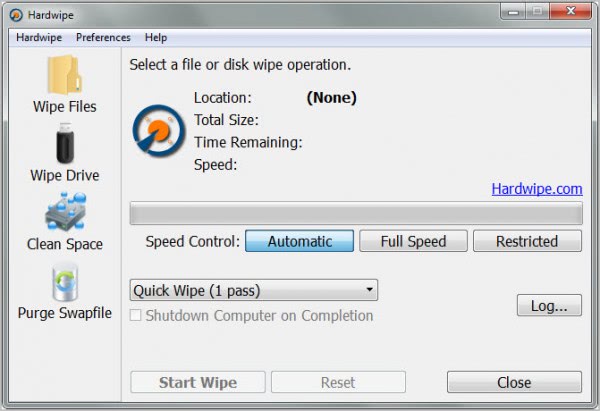
When you first start Hardwipe, you are presented with the following interface.
erase hard drives
Here you can select to wipe files or drives, clean free space or purge the Windows swapfile. The configuration options on the right side of the interface remain the same regardless of selection. You can change the method that is used to overwrite data. Available are quick wipes which overwrite the selected data once to the Gutmann algorithm which overwrites data 35 times. It is furthermore possible to change the speed control setting from automated to full speed or restricted.
A click on Wipe Files opens a file browser which can be used to select individual files or folders for secure deletion. It is possible to select multiple files or folders by holding down the Ctrl key during selection.
Wipe Drive on the other hand asks the user to select a drive or partition to erase all data on that hard drive permanently. Clean Space finally is used to delete all traces of previous files on a partition’s or hard drive’s free space. The Purge Swapfile option, even though listed, is not functional yet.
Hardwipe is a solid alternative for other tools that wipe hard disks and delete files securely under Windows. Tooltips would be handy to explain some options in the program interface that may not be clear immediately. The software integrates into the Windows Explorer context menu to securely delete files and folders directly from the default file manager.
Windows users can download the latest version of Hardwipe from the developer website. The program is compatible with 32-bit and 64-bit editions of the Microsoft Windows operating system. via [ghacks]

Hardwipe 2.0 Released, Delete Files Permanently


Files that you delete in Windows do not get removed from the storage device – usually a hard drive – right away. To speed up the process and all, the files are just marked as not being available anymore, and their disks space is set to be available again for new data.
While that may be the best option speed-wise, it also means that there is a risk of recovery. This can be an issue if you sell your computer, give it away, or trash it and someone else takes it from there. Free file recovery tools can be used to restore many of the files on the system, even if you formatted the hard drive first (with quick format), or deleted all files manually in Explorer.

Hardwipe 2.0

Hardwipe is a free program for Windows that deletes data on hard drives permanently, so that they cannot be recovered anymore by normal means. The author of the program has released Hardwipe 2.0, which is the program’s first major update ever since it was first released (see our first review here: Hardwipe, Erase Hard Drives Securely).
hardwipe 2.0
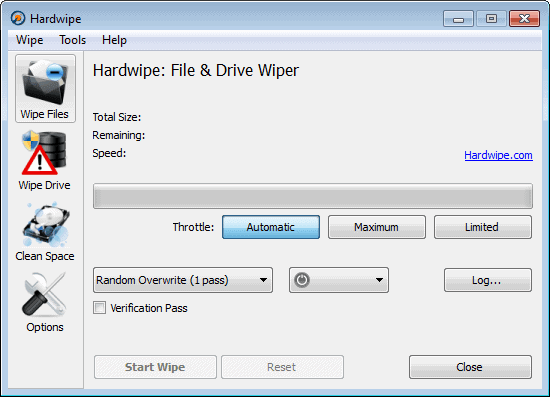
The program interface has not changed that much, which you can confirm if you compare the Hardwipe screenshot with the screenshot from the initial review. The majority of changes and feature additions happened to the core. Hardwipe 2.0 is now fully compatible with Windows 8, as well as Windows 7, Vista and XP.
The core disk overwriting implementation has been re-worked, and performance improved significantly when drives are wiped by the software.  Verification is now available for all operations, which provides the user with information about the effectiveness of the file deletion process.
Hardwipe 2.0 is now more robust when it encounters write failures, and even though the feature is experimental, it should improve the application’s stability further.
Additional new features include the ability to select multiple drives for free disk space wiping, on-demand UAC access prompts, touch support and new preferences in the program’s options menu.
One interesting option that I have not seen in comparable programs like Eraser is the ability to throttle a hard drive during file deletions. This can be set to automatic, to let the program do the throttling, or manual to set limits directly.
The program’s feature set leaves little to be desired. It offers multiple overwrite options, can integrate the command into Windows Explorer, supports logging, and renames files before they are deleted securely. It lacks an option to handle the Windows swap file currently, but that option is promised for one of the future versions of the program (it seems to have been available in previous builds though). The developers plan to create a bootable version of the program to use the wipe functionality without having to rely on the operating system.
Hardwipe 2.0 s an excellent program thanks to its feature set. It feels a bit clunky at times, especially when the drive listing is created in the program interface.  The program’s new verification option is probably the biggest feature in the release, as it provides you with data on the effectiveness of the secure deletion process. via[ghacks]

20111219

iCare Data Recovery software for Professional


This is a data recovery software which I admit I do not know much about, except that I am using it right now to salvage some files off a busted hard drive and am liking it. I do not know if it is any better or worse than the other free(or paid) data recovery software software out there. Here’s what I do know: you can get this for free throughNov 29th 2011 pacific time by following this link.
Actually, I know a few more things:
  • It has a nice wizard interface.
  • It has a deep scan option (which is very important in a data recovery software)
  • It will attempt to salvage files that are accidentally deleted, files from partitions that were formatted, and files off of lost partitions.

20110917

How to recover files from computer with crashed operating system

In this guide I explain how to recover files from a laptop (or desktop PC) with crashed, failed, damaged operating system.

WHEN CAN YOU USE THIS RECOVERY GUIDE?

1. The guide will work if your operating system damaged but the laptop (or desktop PC) hardware still works fine.
2. The guide might work if the hard drive has some minor damage, like a few bad sectors.

PREPARING FOR RECOVERY

For this recovery I’ll be using a Ubuntu CD (Linux OS). Also, you can create a bootable Ubuntu USB stick and use that instead of the CD. Don’t worry, you don’t have to be a Linux guru for that. The interface will be very similar to Windows OS.
You’ll need another working computer to download and create a bootable Ubundu CD or USB stick.
1. Download the latest version of Ubuntu OS here. When you click on the download button you’ll start downloading an ISO image.
2. Burn this ISO image on a CD or create a bootable USB stick. It’s explained on the same Ubuntu download page, just scroll a little bit down.
3. Find the target drive where you going to save recovered files. You can use an external USB hard drive or USB memory stick. The target drive can be formatted with any common Windows file system: FAT, FAT32, NTFS.

How to recover files from computer with crashed operating system I

DATA RECOVERY PROCESS 
STEP 1. Boot your laptop from the Ubuntu CD or USB stick. Simply insert the CD or USB stick and restart the computer.
If the laptop (of desktop PC) keeps trying to boot from the internal hard drive, you’ll have to enter the BIOS setup menu and change the boot order. Set your CD/DVD drive or USB stick as first device in the boot order. Safe changes and restart the computer.
From my experience, Ubuntu OS works fine with most laptop and desktop PC hardware and you shouldn’t have any problem booting it to the desktop. It may not work if your computer hardware is too new.
STEP 2.The computer will start booting from the CD or USB stick.Now read carefully!After some time a welcome screen will pop up. On this screen you can choose your language and choose between two options: Try Ubuntu andInstall Ubuntu.
Select Try Ubuntu. In this case Linux OS will run directly from the CD or USB stick without changing any files on the hard drive.
STEP 3.
Ubuntu OS will continue loading and after a while you’ll boot to the desktop, as it shown on the following picture.
STEP 4.In order to access the internal hard drive, you click on Places in the top toolbar. You should see your internal hard drive in the drop down menu under the Computer.


STEP 5.
When you click on the internal hard drive a new window will open up. In this window you’ll see all files located on the hard drive.

STEP 6.
Now plug in your target drive: external USB hard drive or USB flash drive.Another window will pop up. In this window you’ll see files located on the external drive. In my case I have no files on the external drive, that’s why the window is empty.You can move windows same way you do it in Windows OS. Arrange both windows as you like.

STEP 7.
Finally, drag and drop needed files from the internal hard drive to the external drive.After the transfer is done, you can unplug the external drive and use it on any other computer.

20110614

Data Recovery Over Hard Disk Failure

Hard Disk: An Introduction
Hard Disks are used to store information. All information on computers are stored in files. Hard disks store the majority of information on today's modern computer. Hard disk drives (HDDs) can be critically damaged by static electricity, shock, and other factors, often resulting in failure or the loss of valuable data. In many cases it may become necessary to recover information from your hard drive. Such retrieval is quite possible.

Hard Disk Failure
*Physical Failures
Physical failure occurs from sudden switch off, power failure, sliding them off desks and cheap components. As for data loss, data is only magnetic impulses on the surface of a hard disk. And ridiculously small bits of magnetism at that! When the magnetic impulse fades, or changes position, trouble starts.

Drive Alignment Drift is another cause of problems. Mechanical devices are subject to wear and tear, heat and cold, loosening tolerances etc.

The small changes in the read/write heads wouldn't matter usually, as data still gets written in the same place as it will be read later. However, there is some data that hardly ever gets re-written, and that is the Sector ID Headers.

*Logical Failures
Master Boot Record Failure

Technically, when the Master Boot Record is working correctly, the master boot code scans the partition table for the active partition, finds the starting sector, loads a copy of the boot sector from the active partition into memory and then transfers control to the executable code in the boot sector. If the master boot code cannot complete these functions, the system displays a message similar to the MBR error.

*Boot Sector Failure
The boot sector is a region of a hard disk, floppy disk, and other similar data storage device. It is loaded to memory and executed as a part of the bootstrap sequence. The boot sector contains a small computer program that is loaded on the operating system into memory and transfers the control.

Most boot sector failure occurs by the defection of boot sector virus. Boot sector viruses are usually spread by infected floppy disks. In the past, these were usually bootable disks, but this is no longer the case. A floppy disk does not need to be bootable to transmit a boot virus. Any disk can cause infection if it is in the drive when the computer boots up or shuts down.

*Accidentally Deleted Data
Some time some how you may delete a file thinking we don?t need it any more, but in a week or or two you may realize that it is a needed one. It happens to the best of us, but fortunately there are ways to get these lost files back.

When it comes to data on your computer, it is almost impossible to accidentally remove it beyond recoverability. Even if you are intentionally trying to completely wipe a file from your hard drive it is exceedingly difficult.

*Cross Linked Files
A file system error that corrupts the contents of an existing file by writing data from another file into the same cluster. Running Scandisk or a similar program cleans up the problem, but one of the files is no longer usable.

*Bad Sectors
It is a portion of the Hard disk that cannot be used any more. If a part of the disk get bad sector which contains data then those data is to be recovered before use. When you format a disk, the OS will mark all the unusable sector as bad sector, however, this does not affect the overall performance of the disk as the damaged space is considered unusable.

Hard Disk Data Recovery
*Replace the (Circuit Board) PCB
Upon a Hard Drive circuit board failure, it is possible to get back the data by carefully replacing the PCB of the hard drive.

*Replace the Firmware
Hard disk firmware is the information that is used by the computer that allows it to correctly interact with the hard disk. It may be replaced or updated by the matching firmware.

*Replace the Head Stack
There are common situation that may be due to head failures. There is a small chip located in the head stack that is called PREAMPLIFIER. Working with preamplifiers always includes some difficulties, because, practically, they can not withstand static discharges. If re-soldering is needed, one should follow a number of rules to protect a preamplifier from static damage caused by careless finger touching. Although this task is very risky and it should be done in a high secured lab specially created for this task.

*Move the disk to another Drive
In some cases complete functionality of the Hard drive may be disabled while only the internal disk plate is without any damages or errors. In those situations, it is possible to move the disk to another drive.

*Spin-Stand Testers
Hard drive manufactures and their head media; preamplifier and read channel suppliers do have very accurate, very expensive "magic machines" called Spin-Stands. These are used for testing and experimenting with heads and disks. They are used mostly by researcher and development departments.

*Magnetic Force Microscopes (MFM)
Magnetic force microscopy is a powerful tool for high-resolution magnetic imaging of most data storage media. As the density of magnetic media is higher, the bit becomes smaller than the wavelength of light, so optical techniques can not resolve it. General MFM is capable of imaging the magnetic domain of several tens of nanometers. Also, MFM is almost simultaneous with measuring the surface characteristics of topography and roughness of the same area with sub-angstrom vertical resolution.

Recovery Softwares
*SpinRite 6.0
SpinRite is a stand-alone DOS program designed to refurbish hard drives, floppy disks and recover data from marginally or completely unreadable hard drives and floppy disks and from partitions and folders which have become unreadable.

*Ontrack data recovery software
Ontrack Data Recovery offers the industry's highest quality and cost-effective do-it-yourself data recovery software solutions for almost any data loss situation covering servers, desktops or laptops for all media, operating systems and file types. Ontrack's EasyRecoveryTM family of products is unmatched in its ability to recover/repair from all causes of lost data.

*Recover My Files
Recover My Files data recovery software will easily recover deleted files emptied from the Windows Recycle Bin, or lost due to the format or corruption of a hard drive, virus or Trojan infection, and unexpected system shutdown or software failure.

For more Data recovery topics http://www.pc4safe.com

Data Loss in iPod due to Factory Setting Restoration and Recovery

A new copy of iPod software is called “factory settings”. When you first purchase a fresh iPod, it comes with default factory settings. The factory settings make your iPod easy to customize and operating. Sometimes, when you use your iPod with iTunes or any other data transferring software, you needs to make some changes in the factory settings of your iPod. Sometimes, it also required when you use the iPod with Windows or other operating systems. If you have any problem with your iPod like freezing and shuffling, you can overcome to these problems by restoring the factory settings of your iPod. You may be in need of restoring factory settings in following circumstances:Want to change from Mac to PCWant to change from PC to MacWant to use it both on PC and MacCorruption and freezing problems in your iPodYou can restore your iPod simply by connecting it to iTunes and choosing restore option from the tools menu of iTunes. But you should always keep in mind that when you restore the iPod, it may delete your stored music, image, and text files. If you have some problems with your iPod and like a general user, you have restored you iPod and it has deleted your stored files. It is very shocking for you’re as you have lost your entire music collection and precious images. At that time, you are definitely searching for any software that can restore you lost iPod data. You are right; you can find the software solution of this problem. You can recover the lost data with the help of iPod data recovery software. 
IPod recovery software are the application programs that are specially designed to get back you lost precious music and image files. With these software, you can recover you lost data by connection your iPod to your computer and can scan for the lost data. These are easy to use software programs that can recover data from your corrupted or restored iPod. There is a wide range of iPod Recovery software available for recovering the lost iPod data. Among these software, you can find a powerful iPod recovery software that is Stellar Phoenix iPod Recovery software. This software can recover data from you iPod in all cases of data loss. With the help of this iPod recovery software, you can recover lost data from all models of iPod including iPod classic, iPod Mini, iPod Shuffle, iPod Nano and iPod Touch.
digg_skin = 'compact';
digg_window = 'new';
Article Source: http://www.articlerich.com

20110613

MS Outlook 2007/2010 .PST Password Recovery Tool


MS Outlook 2007/2010 .PST password recovery tool

You might have given password to PST file to open MS Outlook and access emails. But somehow you forgot password to open you PST file, than if u unable to recover it than! Is you critical mail data forever gone!!!

There is a tool KOPR – Kernel Outlook Password Recovery to recover your lost password and you can Access you emails. KOPR tool is PST (Personal Storage) password recovery software which can be used to recover the forgotten passwords from all the versions (2010/2007/2003/XP/2000/97) of Outlook’s .pst files. The password is stored in an encrypted from inside the .pst file and it’s not easy to decrypt. But no matter how long or how complex the password is, KOPR tool can get it instantly. However, if the password is too complex and very long, KOPR tool would not recover the original password but would provide an alternate password which works same as the original password.
Using this tool is also very easy. Just browse to select the .pst file path click on the Recover Password button. You’ll get the password instantly.

20110610

Email Recovery-Good Software can fix your Lost Mail trouble

Emails are an essential medium of communication in the fast track world of today. Be it for our personal or for business purposes, emails are indispensable. Loss of emails can bring about anything from a minor loss to devastation, depending on the need of the user. Hence, data recovery vis a vis emails is an absolute must, especially if emails are essential communication tools for one’s business. Data recovery softwares are a viable and dependable option when it comes to effective email recovery.
Data recovery softwares function differently for different types of files, which are:

* Outlook PST Files
* Outlook Express DBX Files
* Web Mail

Outlook PST Files
PST Files are very complex. So, once data is lost from these files, it is important to recover the data as well as repair them. To recover data the files themselves, these softwares are very helpful. Good software is equipped to repair and restore data from damaged or corrupted Microsoft Outlook file.

Microsoft Outlook stores email messages, contacts, notes and folders on the local drive as a .pst file. The Outlook recovery software scans the damaged .pst file and extracts and saves information in a new usable .pst file, enabling PST Recovery.

The key features of good PST files recovery software are:

* Providing PST Recovery from folders, calendars, contacts, tasks, notes.
* Repairing even the password protected files
* Restoration of formatting from RTF and HTML messages
* Recovering data from encrypted files
* Providing support to repair .pst files.
* Recovering deleted email attachments.

Outlook Express DBX Files
Good recovery software can scan, extract and save emails form .dbx files in which Microsoft Outlook Express stores messages and folders in the local drive. It should also be allowed to retrieve accidentally deleted messages from the ‘Deleted Items’ folder in Outlook Express. The .dbx files also need to be repaired so as to enable smooth functioning subsequently.

The key features of good DBX files recovery software are:

* Providing Mail Recovery from Outlook Express dbx files.
* Providing deleted email recovery of dbx files from corrupt media, such as floppy disks, Zip disks, CD ROMs, etc.
* Provides Mailbox repair of dbx files.
* Support to repair dbx files within a size limitation.
* Recovering deleted email attachments.
* Enabling the recovered messages to be opened directly in MS Outlook Express.
* Enabling recovered messages to be saved in the *.eml file format on any (including network) disks visible by the host operating system.
* Enabling message source view.

Web Mail
In order to access a web based email program like Yahoo or Hotmail, one has to use the Internet Browser to log onto a remote computer which stores the emails. When mails from it are deleted, they cannot be recovered. Hence, data recovery software is required to retrieve that data. It is a very complicated procedure, and only messages that have been opened already can be retrieved using a good software.

As the old and clichéd adage goes, prevention I better than cure. So, it is advised that a lot of care be taken. After all, loss of important mails can spell disaster for your business.